Game Day Streaming Guide
Everything you need to live stream a game on SnapStats. Written for parents and streamers who have never done this before.
Before Game Day
Do these at home. Not at the pool.
Verify your YouTube channel for live streaming
YouTube requires phone verification before any channel can go live. After verifying, you must wait 24 hours before live streaming is enabled. Do this at least a day before your first game.
- Go to youtube.com/verify while signed into your Google account
- Enter your phone number, get the code, enter it
- Wait 24 hours — YouTube will not let you skip this
To confirm you are ready: go to studio.youtube.com → Create → Go Live. If you see a streaming dashboard, you are good. If it says "live streaming not enabled," the 24 hours have not passed yet.
No YouTube channel? Create one free at youtube.com with any Google account.
Do not change settings in YouTube Studio. SnapStats configures your broadcast automatically. Changing latency, resolution, or encoding settings will break sync between the video and the score overlay.
Connect your YouTube channel to SnapStats
This only happens once per team.
- Open SnapStats on your phone or laptop and sign in
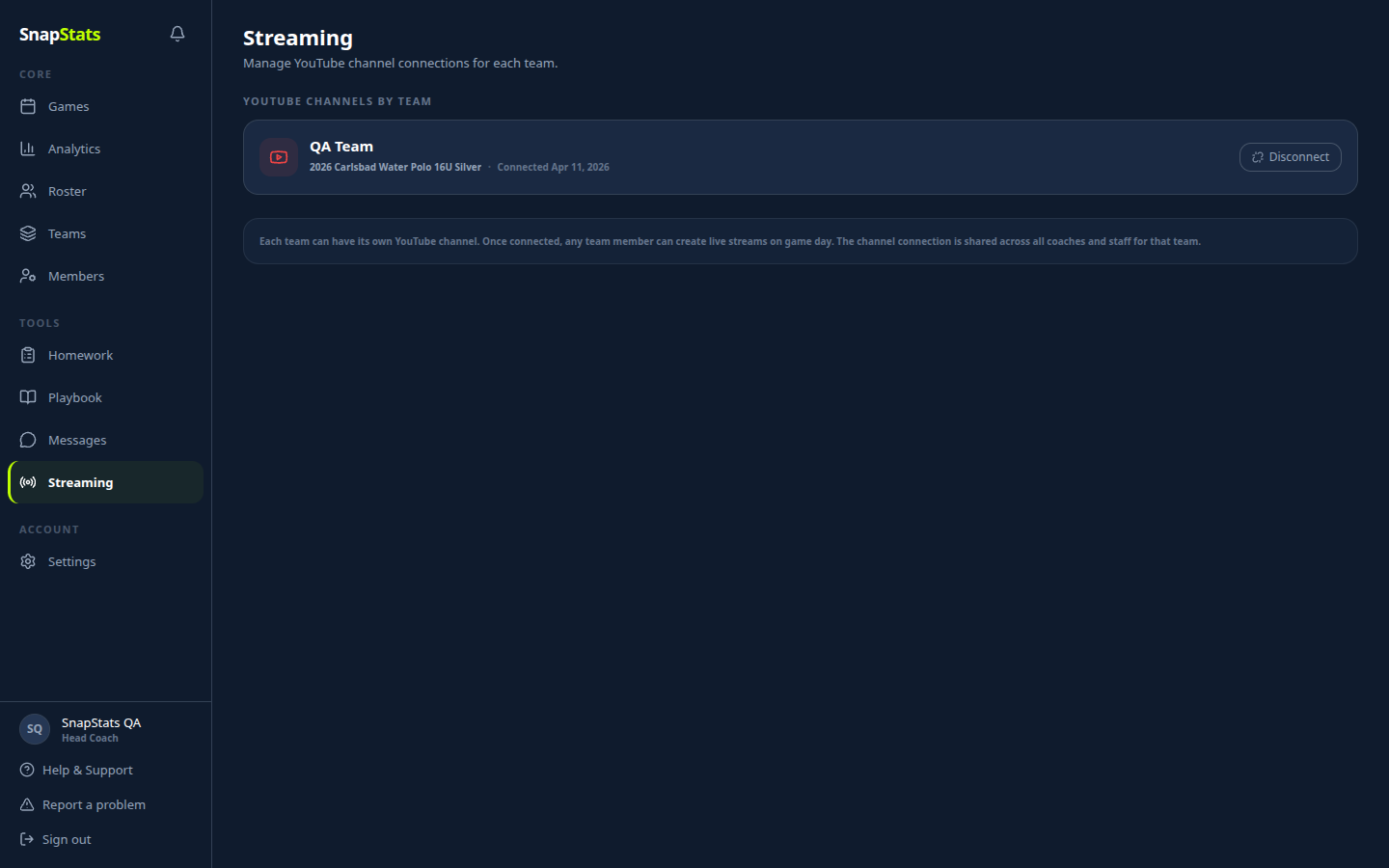
- Tap Streaming in the sidebar
- Find your team's card and tap Connect YouTube
- Sign in with Google and approve the connection
- You will see the channel name appear on your team's card — that means it worked

Check your equipment
- Fully charged phone — streaming drains battery fast. Four quarters takes a full charge down to around 30%. Use a battery pack or plug into a wall outlet if you can.
- Phone mount or tripod — no handholding for a full game
- Strong cellular signal — check signal when you arrive. Fewer than 3 bars or LTE-only? Record in 4K instead and upload after the game.
Set your phone up before every stream
- Auto-Lock → Never — Settings → Display & Brightness → Auto-Lock → Never. Reset it after the game.
- Do Not Disturb → On — Settings → Focus → Do Not Disturb. A notification won't kill the stream but you might tap it by accident.
- Keep SnapStats in the foreground — don't switch to another app. On iOS, backgrounding the app kills the camera feed and you'll lose 10 to 30 seconds of video.
Game Day: Step by Step
Set up the broadcast (web)
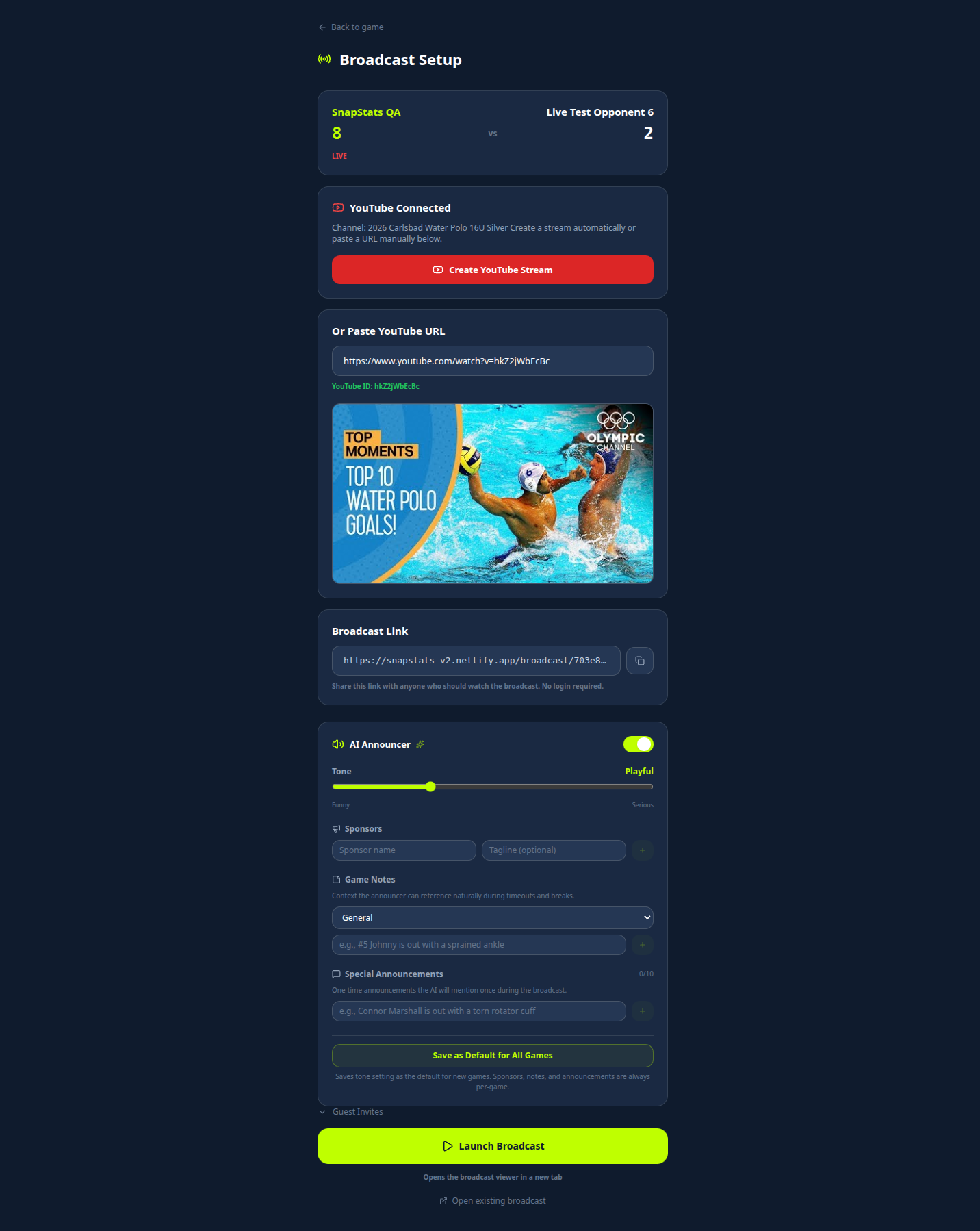
Open the game on the web at snapstats.app → Broadcast tab → Open Broadcast Setup. Do this before going live.
- Announcer tone — slider from Playful to Serious. Playful for regular season, Serious for playoffs or senior night.
- Sponsors — add sponsor names and taglines. The announcer reads them during natural breaks.
- Game notes — tell the announcer what it needs to know: injuries, rivalries, milestones, senior night.
- Guest invites — add VIP guests (grandparents, recruits). The announcer will shout them out.
Start the stream
Ten minutes before game time:
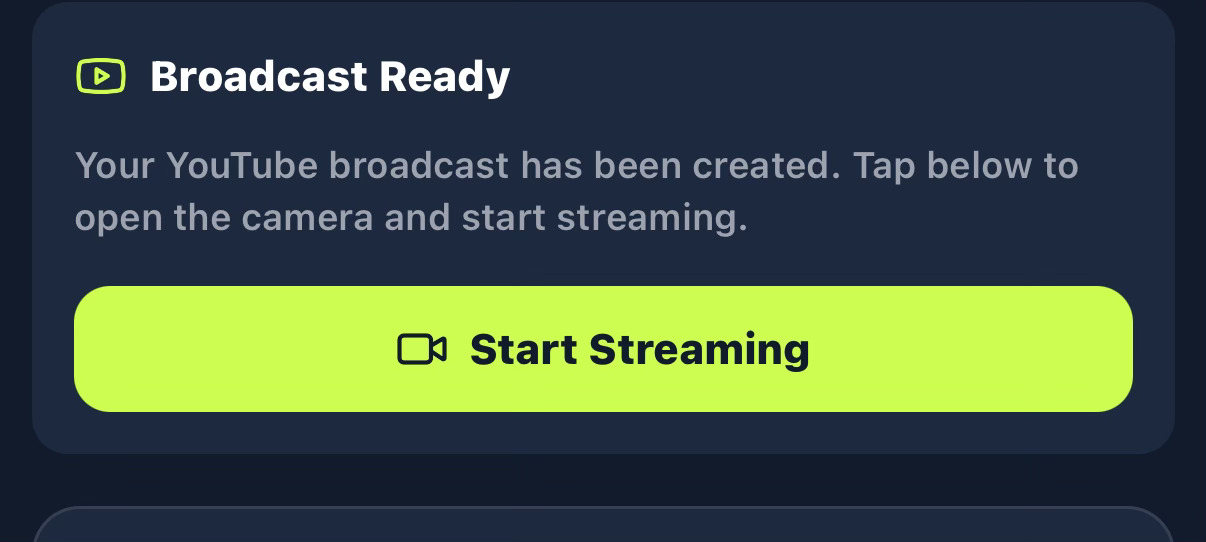
- Tap Go Live on YouTube — this creates the YouTube broadcast
- Mount the phone on a tripod or railing mount
- Tap Start Stream
- Listen for the AI mic check: "Check, check. One, two." — that confirms audio is working for home viewers
Calibrate your sync delay
There is a 10 to 30 second delay between live action at the venue and the stream playing at home. The exact delay depends on your signal strength. Calibrate at the start of every stream so the score updates, goal celebrations, and announcer calls land at the right moment for home viewers.
- Open the broadcast link on a second device nearby
- Make a visual cue in front of the camera (wave your hand) and simultaneously tap Sync on the streaming device
- Watch the second device — the moment you see that visual cue appear on the stream, tap I See It on the streaming device
- SnapStats sets the delay automatically
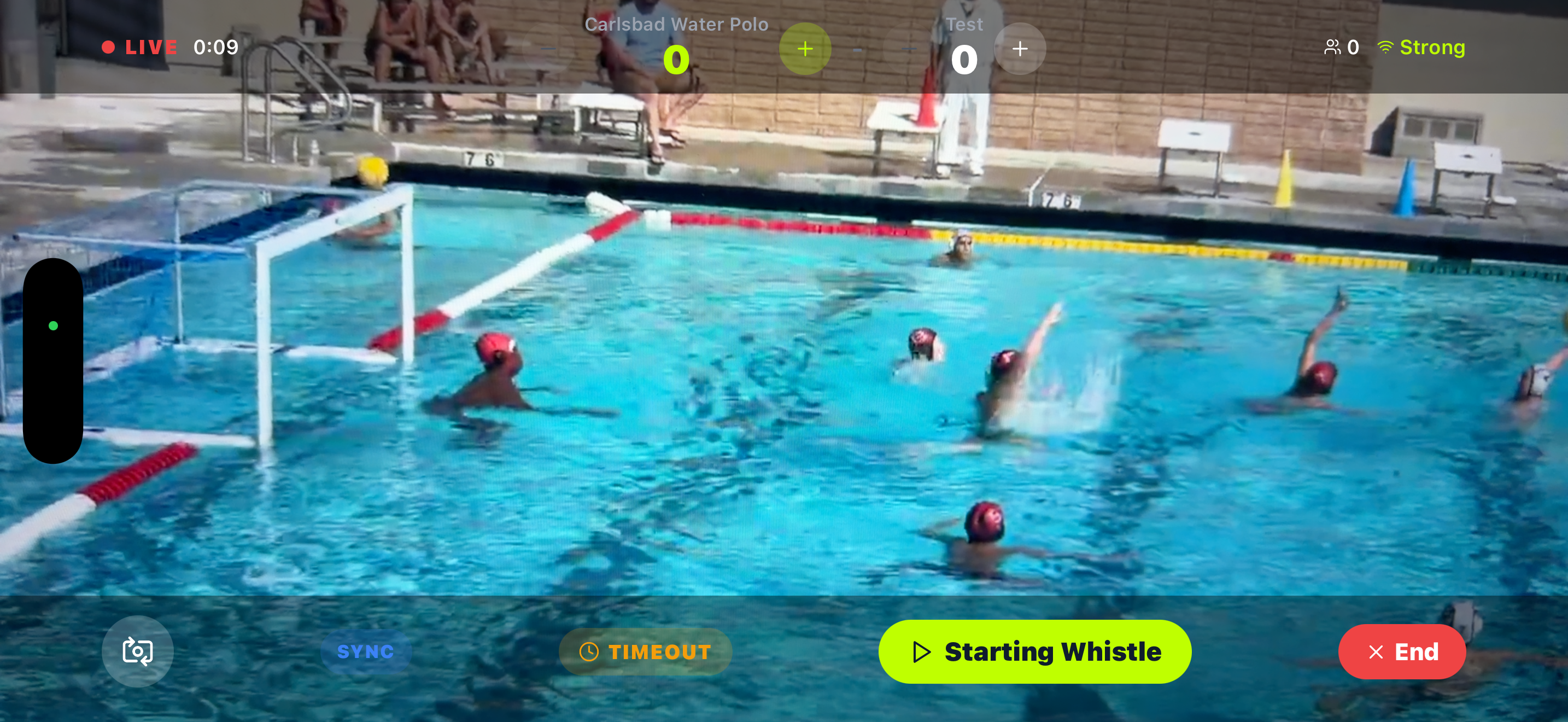
Starting Whistle
When the referee blows the first whistle, tap Starting Whistle.
The period clock starts, scoring buttons activate, and the announcer says "And we are underway."
Score a goal
When your team scores:
- Tap the green Goal button
- Tap the scorer's tile (cap number + first name)
- Tap the assisting player's tile, or No Assist
When the other team scores:
Tap the red Opponent Goal button — that's it, no picker needed.
End the quarter and repeat
When the buzzer sounds, tap End Q1. The announcer delivers the period summary to home viewers after your sync delay.
Tap Start Q2 when the next whistle blows. Repeat for Q3 and Q4.
| When | Button |
|---|---|
| First whistle | Start Q1 |
| End of Q1 | End Q1 |
| Q2 whistle | Start Q2 |
| End of Q2 (halftime) | End Q2 |
| Q3 whistle | Start Q3 |
| End of Q3 | End Q3 |
| Q4 whistle | Start Q4 |
| Final buzzer | End Q4 |
| Overtime (if tied) | Start OT or Shootout |
End the stream
- Tap End Q4 and wait about 1 minute for the announcer to finish the final recap
- Tap End Stream and confirm
The full game video saves automatically to your YouTube channel and links to the Film Room in SnapStats.
Troubleshooting
“Stream keeps cutting out”
Almost always a signal problem. Check your bars. Fewer than 3 bars or LTE-only — switch to 4K recording only and upload after the game.
“Stream won't start”
Go to the Streaming page and confirm your team's card shows a connected channel name with a Disconnect button. If it still says Connect, finish the OAuth flow. Remember the 24-hour YouTube verification wait.
“Screen went to sleep mid-stream”
Auto-Lock wasn't set to Never. Set it before the next game. There is no clean recovery once the screen locks during a live stream.
“Parents can't hear the announcer”
They need to tap the "Tap to hear the game" overlay on the broadcast page. Browsers require a user tap before playing audio. If they tapped and still can't hear, check their phone is not on silent and volume is up.
“Score looks wrong”
Multiple trackers disagreed. The score shows ? – ? until a coach picks the official session. Open the game → Consensus tab → pick the right tracker's session.
“App crashed mid-stream”
Reopen the app and open the same game. Your stats are intact. If YouTube stopped the broadcast, tap Go Live on YouTube again to start a new one.
Quick Reference
Green buttons
Start something (whistle, new quarter, goal)
Gray buttons
End something (quarter, game)
Red buttons
Opponent goal or end stream
Sync button
Calibrate the stream delay at the start of every game
Need help? Ask the SnapStats Assistant in the bottom-right corner of any page.